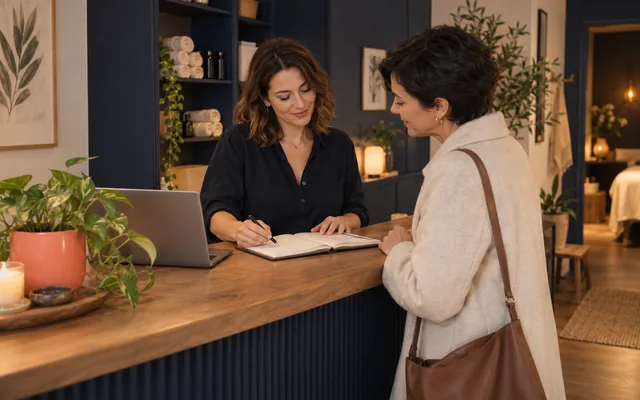
A pottery painting booking system for a paint-your-own studio works differently from class sign-ups. Customers buy not a lesson but a seat at a table for a set time, in which they pick a mug and paint it at their own pace. Some guests book online, others walk in off the street, and everyone sits at the same tables. Count them in separate places and you run out of chairs on a busy Saturday while the form still shows free times.
This guide covers four decisions: the booking unit, total studio seats, session length and recording walk-ins. The studio examples are fictional. Table plans, the till and kiln firing are out of scope. The goal is one live count of free seats for the form and the door.
You sell a seat for a session, not a place in a workshop
In a paint-your-own studio, the booking unit is one seat at a table for the length of a session. A family with two children takes three or four chairs, depending on whether the parent paints. Nobody waits for an instructor; staff hand out paints. So you count people at the tables in a time window, not requests or pieces.
A workshop with an instructor has a fixed start time, a programme and a minimum number of participants. If you run those classes as well, treat them as a separate offer and follow the guide on group workshop bookings. In Meetlead Bookings these seats are an offer with participant capacity; the customer picks a party size and start time.
Count the chairs in the whole studio and set one shared pool
Start with the seats your staff can really handle at peak time, not the chairs in the storeroom. The fictional studio "Glaze Corner" has four tables of six chairs, yet with one person on the floor it treats twenty seats as a safe limit. Those twenty seats are a shared pool. Every offer you show customers should draw from it; otherwise two offers can sell the same chair.
Scroll the table sideways to see all columns.
| Offer | Time at the table | Where seats come from |
|---|---|---|
| Weekday painting | Up to 2 hours | Shared pool of 20 seats |
| Weekend painting | Up to 2 hours, strictly kept | The same pool of 20 seats |
| Parent with a toddler | Up to 90 minutes | The same pool, each person is a seat |
In Meetlead, several offers can share one physical pool, and availability is rechecked when a booking is saved, so two simultaneous bookings cannot exceed the limit. Resources and competing offers are covered in the guide on avoiding double bookings. Skip per-table limits if guests sit wherever there is space; the pool counts chairs and staff decide the seating.
Define the session window: start, time at the table and clean-up
A painting session has a length, but guests do not have to start on the hour. You need to separate two numbers: how often you offer start times and how long a guest occupies a seat. The difference between start-time spacing and service duration is explained in the guide on booking slot intervals.
- Set the time at the table.Enter the length of a typical session as the offer duration. If you enforce a weekend limit, state it in the description.
- Add time to reset the workstation.Water, palettes and tables need resetting. Set a buffer after each booking so the next guest finds a clean seat.
- Choose the spacing of start times.Closer starts suit guests arriving at random times; wider spacing is easier for one person at the desk.
- Check the last start before closing.The last start time has to leave a full session plus clean-up. Set separate windows for weekdays and weekends, and enter public holidays as exceptions.
Pay attention to minimum notice. If the form accepts a booking five minutes ahead, the guest may arrive before the seat is ready. The setting is explained in the guide on minimum booking notice. With heavy walk-in traffic a short notice period can make sense, but test it before your first Saturday customer.
Walk-in guests: record them before they sit down
A walk-in takes the same chair as an online booking. Seat them without an entry and the form still shows that chair as free for the next start. That is why you add every walk-in manually in the panel, in the same calendar as bookings from the form. The same rules apply as in the guide on phone bookings in the calendar: save the entry first, make the promise second.
- Check the agenda for free seats at the next start.
- Ask how many people will paint and how many are only accompanying.
- Enter the booking with the right number of people before anyone sits down.
- Tell guests when the session ends.
- If seats run out, offer a specific later start.
Decide the minimum details staff collect at the door. If the offer requires an email address and a walk-in will not give one, never enter a made-up address. Consider a separate offer for on-site entries with a shorter list of required details and the same seat pool; it does not have to be visible in the customer form. Before the busy season, also test how the panel handles a guest arriving mid-session: with your settings, the nearest option may be the next start, not the current one.
"All seats are taken right now. The next free start for three people is at 4:30 pm, and the session runs until 6:30 pm. I can book you in straight away so the seats are held for you."
Describe what a session includes and keep price separate from payment
Before booking, customers want to know how long the session lasts, what is included and when they can collect their piece. A studio price often has two parts, for example a seat or studio fee plus the price of the chosen mug. Separate the per-person and per-item amounts, following the guide on per-person or per-booking pricing. In Meetlead Bookings the price is for information only: the form does not take payment, so settling the bill stays at the studio till.
"You are booking a seat at a table for two hours of painting. You choose your piece at the studio, and paints and brushes are included in the seat price. We fire finished pieces in our kiln and will tell you the pick-up date when you leave."
Firing times depend on your kiln and queue, so do not promise a fixed number of days in the form unless you are sure. The booking covers time at the table, not producing the finished piece. Share pick-up details as guests leave or in a message you write yourself, so the confirmation does not promise something the system does not track.
One link on Google, social media and your website
Guests often find studios through search and maps, so your booking link should open the same offer as your website. Adding the link to your profile and to Instagram is covered in the guide on sharing your booking link. Do not keep a parallel list in direct messages that never reaches the calendar.
Google's help centre explains how to add appointment and reservation links to a Business Profile, up to ten per link type, and how to mark a preferred link. The source says nothing about counting seats in a studio or how any particular booking system works. Google Business Profile Help.
Larger groups, such as birthday parties or a school class, take a big share of the pool at once. Give them a separate group offer with manual approval on the same pool, so staff can check that other guests still fit. A class with chaperones is a separate organisational case, similar to the one in the guide on booking a school museum visit. There you also count adults who do not paint but still take up space.
Questions from studio owners
Do I need to hold back seats for walk-in guests only? That is a business decision for your studio, not a system requirement. Bookings counts every chair in one pool and does not set aside a separate reserve for street traffic. If the studio fills up online, a walk-in guest gets the next free start; say so on the door and on your website. What matters most is that staff record every guest straight away.
Will the system seat guests at specific tables? No. A booking reduces the shared count of free seats but does not assign a table. If a larger group wants to sit together, add that to the booking notes and prepare a table before they arrive.