
Conversations and tickets
Read a transcript, add an internal note, update a ticket status or priority.
API and MCP
Recognize customers in your product. Work with conversations, tickets and tasks in your AI tools. Choose the path that fits your workflow.
Free Starter plan. No credit card required.Explore the product in a demo tailored to your business.
 One shared context
identify() · goal()read / writeWidget API · JavaScript
Pass the signed-in user’s identity to the widget. Your team gains customer context, while configured goals measure events from your product.
const identity = {
  userId: currentUser.userId,
  name: currentUser.name,
  email: currentUser.email
};

const meetlead = window.meetlead || (window.meetlead = { q: [] });
if (typeof meetlead.identify === 'function') {
  meetlead.identify(identity);
} else {
  meetlead.q.push(['identify', identity]);
}const meetlead = window.meetlead || (window.meetlead = { q: [] });
const goal = { value: order.total, currency: order.currency };
if (typeof meetlead.goal === 'function') {
meetlead.goal('purchase', goal);
} else {
meetlead.q.push(['goal', 'purchase', goal]);
}Profile assignment needs no secret. History access requires separate verification. The purchase key must refer to an active goal for this website. The full guide covers queuing before the widget loads.
Goals, CSAT and consentModel Context Protocol
Connect ChatGPT, VS Code, Gemini CLI, Codex, Claude Code, Cursor or Windsurf to your workspace. Read a request, create a task and leave concrete next steps for your team.
Open MCP Server in Meetlead settings. Choose your application and add the configuration containing the server URL.
Complete OAuth sign-in. As the owner, choose your workspace, read access and optional write access.
Start with list_applications. Use its applicationKey in subsequent operations.
codex mcp add meetlead --url https://api.meetlead.eu/mcp
codex mcp login meetleadclaude mcp add --transport http meetlead https://api.meetlead.eu/mcp{
"mcpServers": {
"meetlead": {
"url": "https://api.meetlead.eu/mcp"
}
}
}https://api.meetlead.eu/mcphttps://api.meetlead.eu/mcp{
"mcpServers": {
"meetlead": {
"serverUrl": "https://api.meetlead.eu/mcp"
}
}
}{
"mcpServers": {
"meetlead": {
"httpUrl": "https://api.meetlead.eu/mcp"
}
}
}You do not create or copy a token. Find each application’s sign-in instructions in MCP Server settings. Claude Code uses /mcp; Gemini CLI uses /mcp auth meetlead.
MCP performs supported internal actions. It does not send replies to customers.
Read a transcript, add an internal note, update a ticket status or priority.
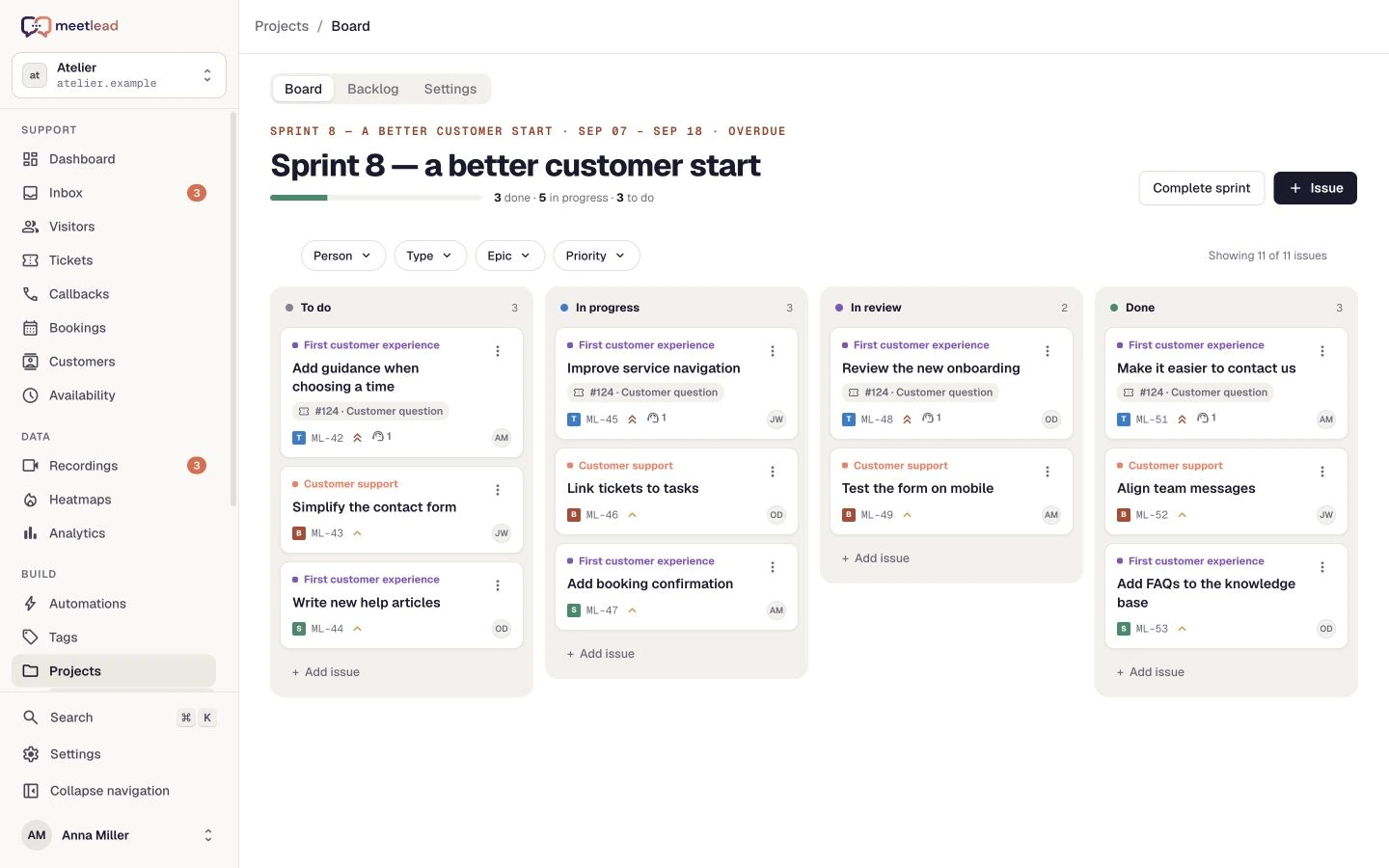
Create a task, comment and link to the source request. Projects must be active.
Read articles, prepare drafts and manage publication with administrator permissions.
Use reports, Widget Studio configuration and automation tools within the granted scope.
From context to action
Skip copying the whole history. Ask for a concrete outcome and keep a link to the source.
“Read ticket #124. Create a task in Projects with a description of the problem and a link to the ticket.”
list_applicationsChoose the websiteget_ticketRead the requestcreate_project_issueCreate the tasklink_project_issueLink the sourceExample prompt. Writing requires write scope, appropriate permissions and an active Projects App.
Access under your control
read allows data access. write adds supported changes and includes reading. Roles, limits and active Apps still apply. Disconnect the application in MCP Server settings whenever needed.
Meet AI assists visitors and operators inside Meetlead. MCP connects an external AI tool to a controlled scope of workspace data and actions.
Only the workspace owner. During OAuth sign-in they choose the workspace and access scope. Consent lasts up to 30 days and can be revoked earlier in MCP Server settings.
No. The current scope covers reading and selected internal actions such as notes, tickets, Projects and help articles.
No. The key must refer to an active goal configured for that website. Define what the event means and trigger it after confirmed success.
No. The granted access scope, user permissions and active installation still apply. Write access does not activate an inactive App or enable arbitrary operations.
Documentation for implementation. A demo if you want to see the full workflow first.