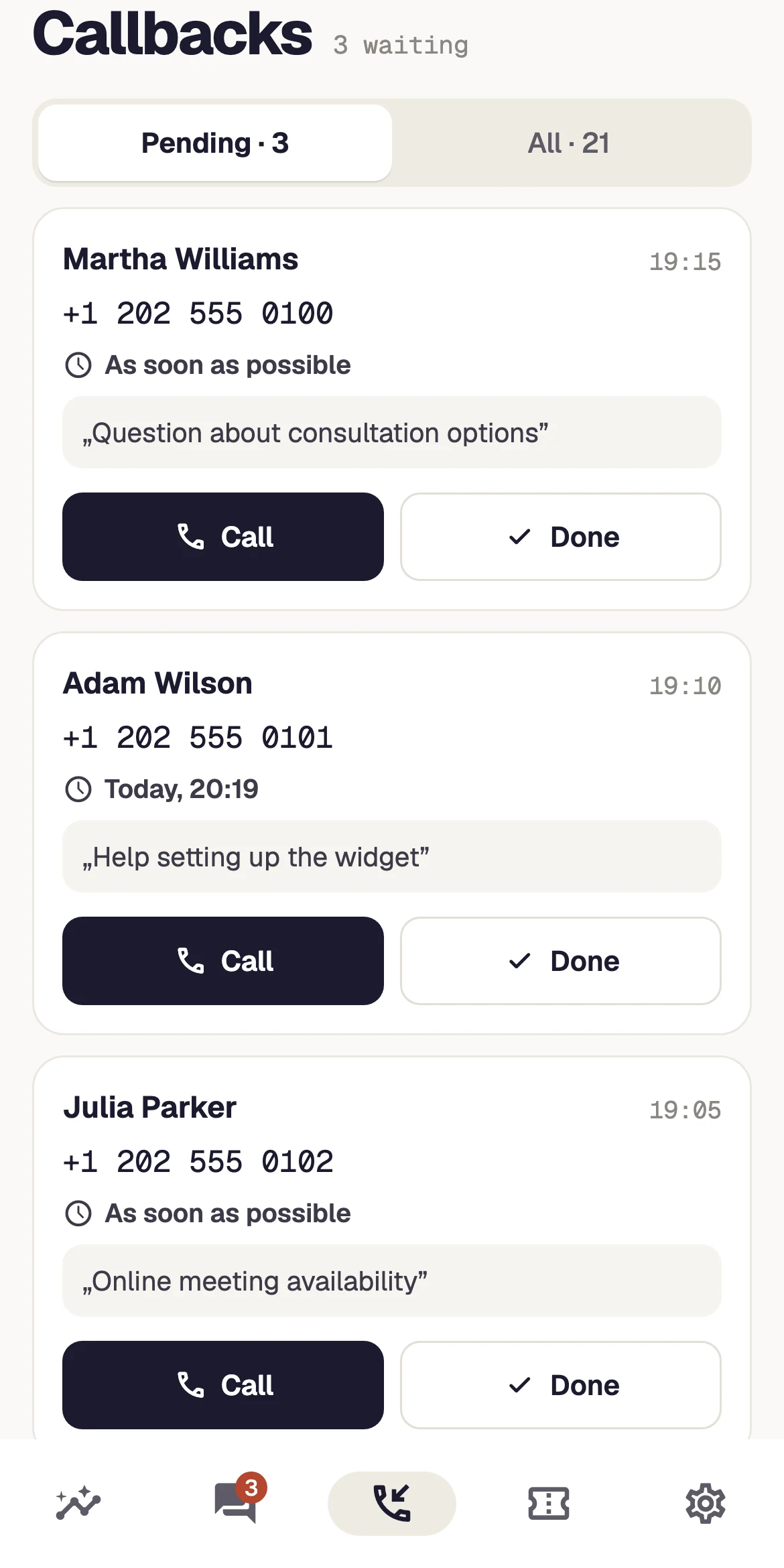
Inquiries are rarely lost in a sophisticated way. Usually, no one noticed them: the message arrived during a meeting, the panel tab was minimized, and the email landed in a folder someone stopped opening two months ago. The natural response is to enable everything available. A week later, the team has learned a new reflex: dismiss the notification before reading it. The problem has not disappeared; it has merely become invisible.
Why ‘enable everything’ ends with everything being ignored
Alert fatigue is not a matter of character or discipline. It is simple learning through repetition: if nine out of ten notifications require no action, the brain stops treating the tenth as a signal. In a large team, the effect is distributed across many people; in a team of three, it hits everyone at once. The same notification that accelerated a response in week one slows it down by week five.
In a small business, it works like this: someone enables an alert for every new message, every customer reply, every status change, and every assignment. The team receives dozens of signals a day, only a few of which actually require a response. Two weeks later, an inbox rule moves the entire category into a separate folder. At that point, the notification system works in theory but no longer exists in practice.
- An alert without a decisionA notification that never leads to action teaches the team that it can be skipped.
- One channel for everythingPutting urgent and informational messages in one place makes urgent messages impossible to recognize.
- Notifications about your own workAn alert about an event you triggered yourself is pure noise with no value.
- The same alert in three placesSending the same event to the panel, email, and calendar does not increase the chance of a response.
The conclusion is uncomfortable because it runs counter to intuition: the number of notifications and the chance that a case will be picked up do not rise together. Beyond a certain threshold, they move in opposite directions. Good notification settings are therefore about turning things off, not on. Start by asking which events truly deserve to interrupt someone's work.
There is no meaningful benchmark for ‘how many daily notifications are too many.’ The threshold depends on how many require a response: twenty alerts that each lead to action are easier to tolerate than five that require nothing.
Three urgency levels and three ways to notify
Instead of deciding separately for each event type, assign every event to one of three levels. The level determines not the message itself, but its right to interrupt work: should the event pull someone away from what they are doing, or simply wait somewhere visible until they look?
Scroll the table sideways to see all columns.
| Situation | How to notify | Why |
|---|---|---|
| New conversation during working hours | An immediately visible signal in the on-duty operator's panel, with no email | The customer is on the site now and waiting; an email would arrive too late |
| Message outside working hours | A single summary at the start of the next day | No one can handle it sooner, so a nighttime alert changes nothing |
| A case waiting too long | An escalation alert to one designated person after a defined interval | This is the only point at which interrupting someone else's work is worthwhile |
The first row is the most important and the one most often configured badly. Live chat makes sense only when replies arrive in seconds, not minutes, so the only effective notification is one visible in the open panel of the person on duty. Sending an email creates the illusion of a safety net but actually delays the response, because the operator waits for email instead of watching the panel. We explain how to measure whether this works in our article about first response time in chat.
The third row is the only notification allowed to be intrusive. A case left unanswered for several hours is now a problem, not an event. The escalation alert should therefore look different from every other notification so it can be recognized without reading. If it looks like a status-change notice, it will land in the same folder.
The Meetlead panel updates conversations and tickets in real time without refreshing the page, and read status is calculated from the customer's latest activity. Explore the product.
Who should receive each notification
A notification sent to everyone is effectively sent to no one. Every recipient sees that others received it too and assumes—usually correctly, because everyone makes the same assumption—that someone else has already handled it. This diffusion of responsibility grows with the recipient list and cannot be fixed by adding ‘please respond quickly.’
- Every notification names one recipient, not a distribution list.
- The recipient of a new-conversation alert is the person currently on duty, not the whole team.
- An escalation alert goes to one person designated in advance for that day.
- Informational notifications can have a shared recipient because they require no response.
- No one receives a notification about an event they triggered themselves.
- When the shift changes, the alert recipient changes too—not just the schedule entry.
This division depends on knowing who is actually available. In Meetlead, an operator counts as available only when the panel has an active connection, their role is eligible, and the current time falls within the configured schedule. The final disconnection immediately switches the channel to offline mode. This directly affects notifications: the system does not try to send an urgent signal to someone who has closed the panel, and the widget does not promise a presence that does not exist.
The other side of the same mechanism is what happens when no one is available. If a customer requests a call while no team member is available, an email about the new request goes to the account owner. Delivery uses a durable retry mechanism, so a temporary mail problem does not silently lose the notification. Automations can also email an active team member, with limits that protect against bulk sending during a sudden traffic spike. What to do when you call back after such a notification and the customer does not pick up is covered in our guide to unanswered callbacks.
Deciding who is on duty at a given time is a separate task and a separate topic. We break down when inquiries actually arrive and how many people need to be available in our article about customer service staffing. Notifications should reflect that schedule, not replace it.
If you cannot name one person who is expected to do something immediately after a notification, it is not a notification—it is an announcement. Announcements can wait in the panel. Let's discuss your setup.
Outside working hours: availability versus always being on call
Evening and weekend notifications are where good intentions turn into burnout fastest. The argument sounds reasonable: if an inquiry arrived at 9 p.m., it is better to know. But knowledge without the ability to act is a burden, not an advantage. And if action is possible, the working day effectively never ends.
The boundary is easy to draw if you draw it deliberately. An after-hours event either has an assigned person who is responsible at that time and knows this in advance, or it generates no alert and waits for the morning summary. There is no third option. Sending notifications to everyone ‘just in case someone happens to look’ is exactly the arrangement everyone mutes after a month. The boundary is hardest to hold when clients text your personal phone, which is why we describe separately how to move that contact to one business channel in 30 days.
- 20:40
A customer leaves a message through the offline form, creating a ticket
- 20:40
No alert goes to a private phone because no one is on duty
- 08:00
The on-duty operator opens the panel and starts the day with the unassigned-cases filter
- 08:06
The reply is sent before the first live conversation of the day
It is worth stating directly what changes the operating plan: Meetlead has no mobile application or SMS notifications. Its only signal channels are the open panel and email. That means you cannot build a service model around the assumption that ‘someone will get an alert on their phone and respond from home,’ and it is better to know this while planning than discover it later. Instead, use a clear offline message with a realistic return time and an option to request a callback at a chosen time.
Holiday or sick leave is a separate case, where ‘outside working hours’ lasts an entire week. Notifications cannot solve it because no one is there to receive them. You need a cover plan or an explicitly closed channel. We lay out such a plan in our article about customer service during absences.
Test whether notifications work at all
Notifications have an unpleasant property: when they stop working, they do not send a notification about it. The email address of someone who left the company, a filter created six months ago, a changed availability schedule, or a muted browser tab can each quietly disable part of the system. Once a quarter, take a few minutes to check that the signal still gets through.
- Start a conversation from a personal device.Visit your own website as a customer and send a message during working hours.
- Measure how many seconds it takes the operator to see the signal.Not how long it takes to reply—measure only the moment it is noticed.
- Repeat the test outside working hours.Check that the offline form creates a ticket and that it enters the queue.
- Request a callback when no one is on duty.Confirm that the email about the new request reaches the account owner.
- Check every recipient's mailbox.Pay particular attention to spam folders and rules that move messages out of the primary inbox.
- Disable one notification no one remembers.If no one can explain its purpose, it is no longer needed.
The final step keeps the system healthy over time. Notifications accumulate by themselves: someone adds an alert after every unpleasant incident, but no one removes anything. Disabling one unnecessary signal each quarter is the only counterweight to that growth, and takes less time than debating whether it should really be turned off.
You configure the availability schedule, offline message, and ticket-creating form separately for each website. Start configuring.
When something slips through anyway
No set of notifications is airtight, and planning on any other assumption ends in disappointment. Alongside alerts, you need a mechanism for finding missed cases that works whether or not anyone noticed anything. An alert is a real-time signal; a queue review is the safety net beneath it. The latter determines how many cases are truly lost.
- Unassigned-cases filterOne place showing everything no one has taken responsibility for yet.
- Read status based on customer activityA case becomes unread again when the customer adds something after the last reply.
- My cases filterIt lets everyone end the day with an empty personal view instead of an empty hope.
- A short closing reviewA few minutes at the end of the day to make sure nothing rolls over unanswered.
This review does not need to become a half-hour ritual. In practice, checking the unassigned and unread filters twice a day—once at the start and once before the end—is enough. If cases regularly appear on that list, it does not mean the team works badly. It means the notifications for that category are too weak and should be moved up a level.
The order in which the team picks up these cases is a separate decision and a separate article. We describe prioritization rules in our piece about priorities in the ticket queue. If you suspect inquiries disappear before reaching the queue, somewhere between the website and the panel, start with our review of all potential leaks in where you lose inquiries.
You cannot reliably count cases that no one ever noticed—by definition, they leave no trace in any report. The only available approximation is the number of cases recovered from the unassigned filter after waiting longer than expected, and it is worth recording even manually.