
A heatmap helps you see an aggregate pattern of behavior on a specific page. A click map shows which elements are selected more or less often, while a scroll map shows how far visitors get. It does not explain their motivation, however. To make a sound decision, you need to connect the pattern with the device, the page layout, session recordings, and a business question.
What does a heatmap show—and what does it not show?
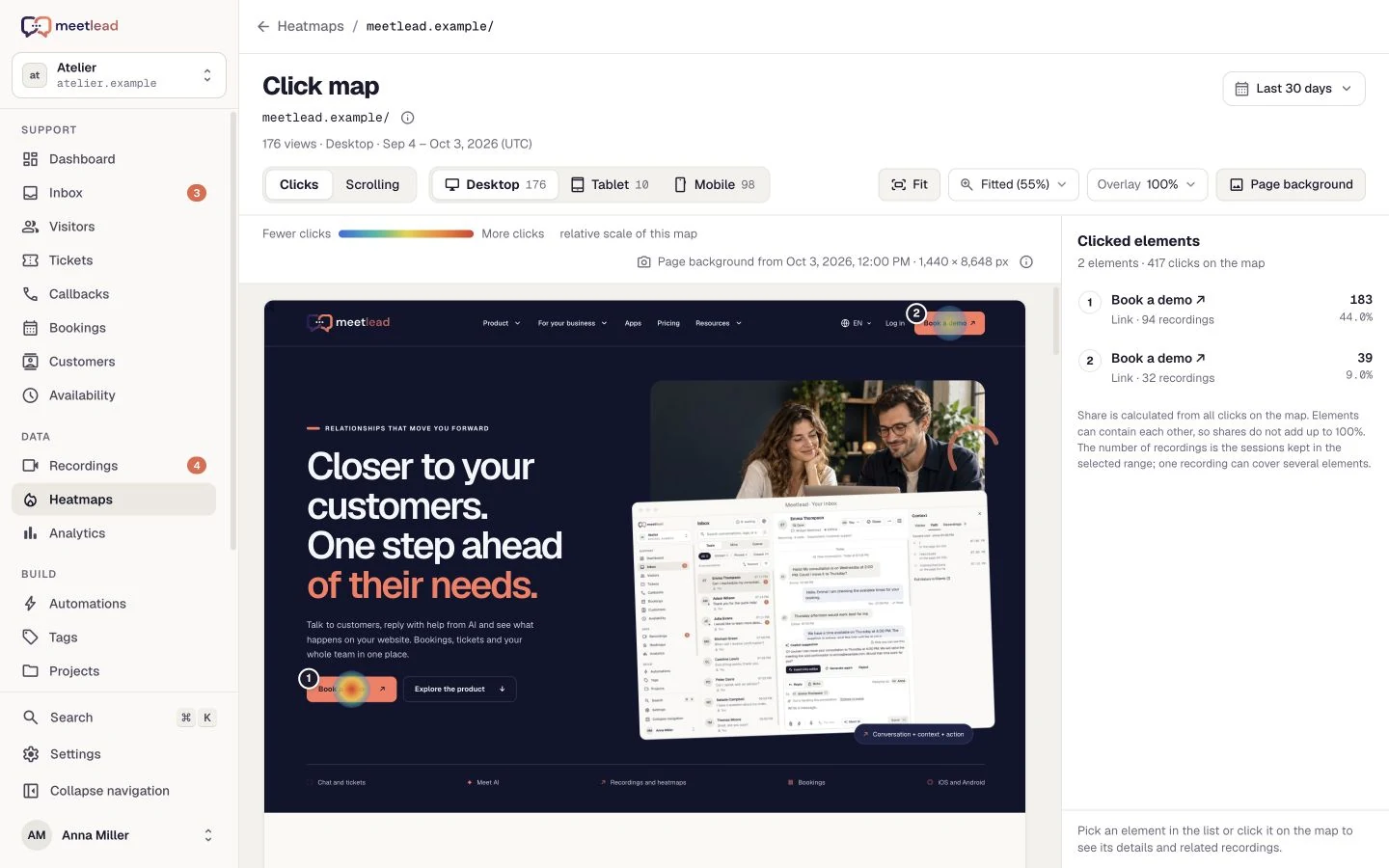
The simplest way to think of a heatmap is as a bird's-eye view. Instead of looking at an individual visit, you see many actions overlaid on the same image of a page. This makes it easier to notice that an important button is being overlooked, a non-clickable element is attracting clicks, or most visits never reach a later section.
- Click mapHelps you find elements that are selected frequently and places that look interactive even though they are not.
- Scroll mapShows, in aggregate, which parts of the page visitors reach on a given type of device.
- Element rankingOrders recorded clicks and makes it easier to compare several CTAs or links.
- Device viewLets you separate mobile and desktop visits, where the layout and method of interaction differ.
A heatmap does not tell you whether a click succeeded, whether the person found the answer, or why they ended their visit. A hot area is not automatically good, and a cold one does not necessarily indicate a problem. A logo may receive frequent clicks because people want to return to the beginning. A phone number may receive few clicks because customers copy it manually or get in touch another way.
A heatmap shows ‘where and how often’. A recording can show ‘in what order’. A conversation helps you understand ‘what the customer was trying to do’.
One of the most common uses of click maps is checking whether the navigation works—whether people choose the menu items you expect. We describe the full diagnostic process in our article on website navigation.
Scroll the preview sideways or enlarge it to see the details.
Write down one question before opening the heatmap
Without a question, a heatmap quickly becomes an attractive image full of curiosities. Instead of saying, ‘Let's see what people do,’ choose a decision you can actually make. For example: ‘Is the implementation description too far down on mobile?’, ‘Does the Growth plan card look clickable?’, or ‘Which of the two CTAs leads to the form?’
A good question identifies the page, device, and element. It also helps you decide which visits not to mix. If the page layout has changed recently, do not blindly overlay clicks from the old and new versions. If sections appear in a different order on mobile, analyze it separately. Traffic from a campaign promoting a specific offer may behave differently from search traffic.
Whenever you record results, add some brief context: the collection dates, page address, device type, and layout version. This will let you tell a month later whether you are comparing the same view. Without such a note, a difference on the map may result from a new campaign, the season, or a design change rather than from the behavior you are trying to explain.
Our guide to analyzing user behavior describes a broader method for framing questions. A heatmap is one source within that method, not an answer in its own right.
How to read a heatmap step by step
- Choose one URL and device type.Do not combine the homepage with the pricing page or phones with large screens. Start by building a comparable set of visits.
- Check that the image matches the version you are studying.A change to the header, section order, or expandable menu may mean that old points no longer match the view.
- Find a difference between expectations and the pattern.Do not look for the ‘hottest spot’. Look for behavior that interferes with a specific goal of the page.
- Compare the surrounding context.Look at the text before the element, the CTA's visibility, its distance on mobile, and whether a similar component behaves differently.
- Move on to a few relevant recordings.Select sessions from the device and page in question. Check the sequence of actions instead of watching random visits.
- Write down a hypothesis and how you will verify it.Separate the fact ‘the CTA gets fewer clicks’ from the supposition ‘the button text may be unclear’.
- PATTERN
Many clicks on the heading of a plan card
- CONTEXT
The card looks expandable but does not respond
- HYPOTHESIS
The component's appearance may create a false expectation
- TEST
Change the interaction cue and measure again
Click and scroll maps separated by device, with a path to the specific visit. See how it works.
Four traps that lead to bad conclusions
Scroll the table sideways to see all columns.
| Trap | Faulty shortcut | A better check |
|---|---|---|
| Treating color as a quality score | ‘Red is good; cool colors are bad’ | Assess whether the pattern supports the purpose of that specific element. |
| Mixing devices | ‘Users do not see the CTA’ | Compare mobile and desktop because the element may be in a different position. |
| Drawing conclusions from a single period | ‘This is a permanent problem with the website’ | Check whether the layout, campaign, or traffic source changed the context. |
| Confusing correlation with a reason | ‘They do not click because the text is bad’ | Review recordings and questions from conversations, then test a change. |
There is no magic number of visits after which every conclusion becomes certain. The lower the traffic and the more fragmented the segment, the more cautiously you should treat the pattern. A few sessions may reveal a technical error, but they do not justify a sweeping story about every customer. Rough thresholds per page and device, plus a plan for low traffic, are in our guide to heatmap sample size.
If you do not know whether your question calls for an aggregate view or an individual visit, see our comparison of session recordings and heatmaps. These tools complement each other, but they are not interchangeable.
The most common trap concerns devices: a heatmap that mixes mobile and desktop traffic does not describe any real situation. We cover a separate process for phones in our article on mobile conversion.
Also check whether an element covering the content has distorted the map. A pop-up can change the click pattern across an entire page—we discuss this in our article about website pop-ups.
A series of clicks does not prove frustration or a fault. Compare rage clicks and dead clicks, then check suspicious patterns in a recording and by reproducing the element’s behaviour.
How do you move from colors to a useful decision?
At the end of the analysis, you should have three short statements: what you observed, the possible cause, and what you will change to test it. For example: ‘On mobile, few visits reach the implementation information. It is preceded by a long feature comparison. We will shorten that comparison and move the implementation link higher, then compare scrolling and visits to the form.’
This record protects you from a redesign based on impressions. It also makes it easier to create a backlog in which observations have an owner, a priority, and a method of verification. You can learn more about combining sources into one plan in our step-by-step website conversion audit.
Sometimes the right decision is to make no change. If a cool element serves a supporting role while the more important journey works correctly, moving it simply to increase its click count may damage the page hierarchy. A heatmap should support the business goal and customer convenience—not create a contest for the hottest component.
- Separate heatmaps for different devices and layout versions.
- Analyze the page in the context of one business question.
- Do not treat a color as an intention or a reason for behavior.
- Check the chosen pattern in recordings and conversations.
- Write down the hypothesis before making a change.
- Decide which signal will prompt you to evaluate the result again.
A heatmap is no substitute for correctly configured analytics, qualitative research, or customer conversations. If you need to understand an individual form error or the sequence of actions, start with a recording. If you want to learn the motivation, ask the customer.
When a heatmap reveals a pattern but not its cause, the fastest way to find an answer is to speak with five people completing the same task. We explain how to conduct these conversations in our article about website usability testing.
A long pricing table is another particularly useful case—a scroll map quickly reveals a column that nobody reaches. We describe it in our article on pricing pages.